Log in to WordPress
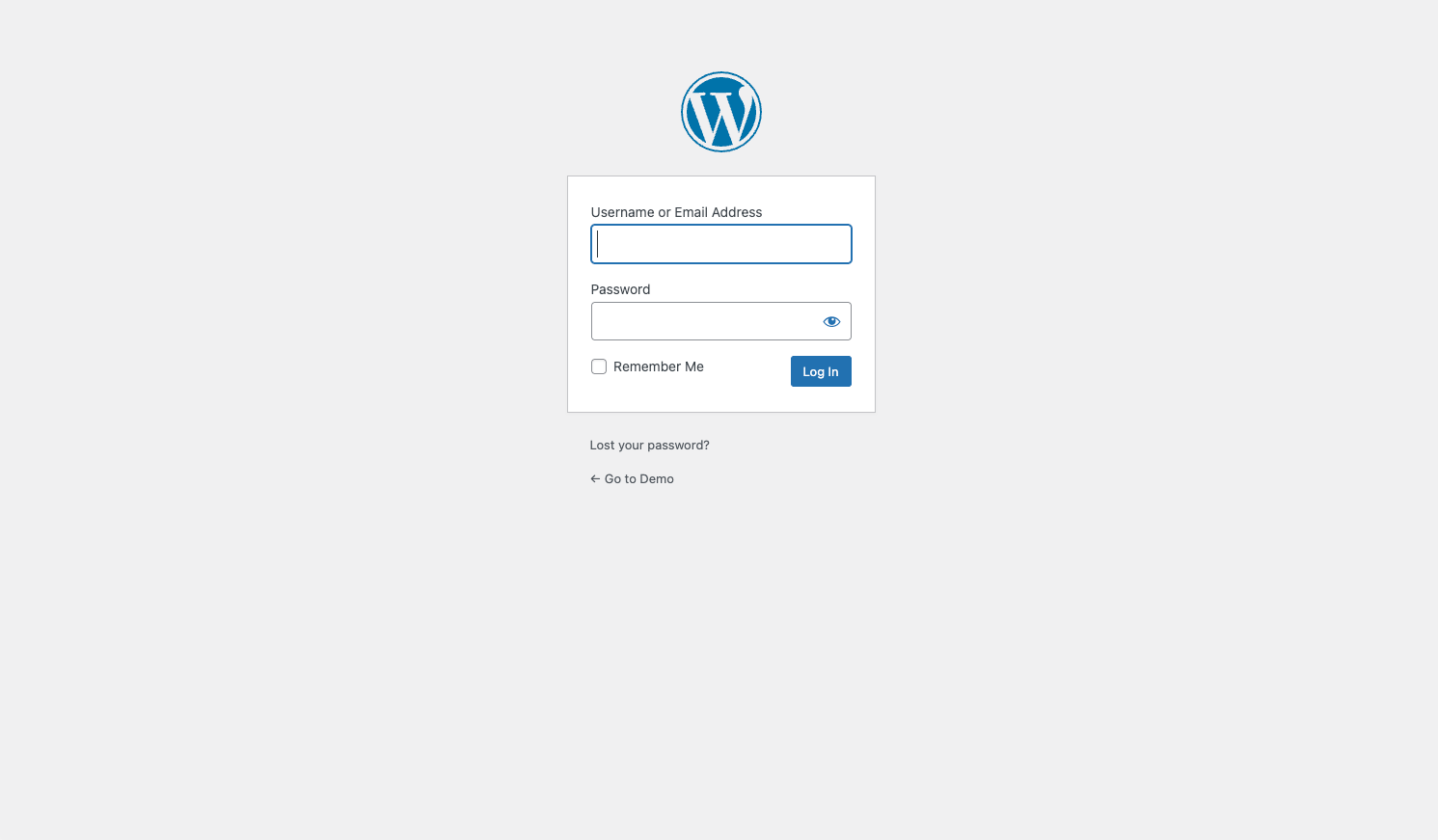
Open your website’s WordPress login page and sign in with your own credentials.
At this stage, you enter the WordPress admin panel so you can install a plugin and add the ZedChat code to your site.
Install WPCode, add the ZedChat embed script, and publish the widget on your website in a few simple steps.
Open your website’s WordPress login page and sign in with your own credentials.
At this stage, you enter the WordPress admin panel so you can install a plugin and add the ZedChat code to your site.
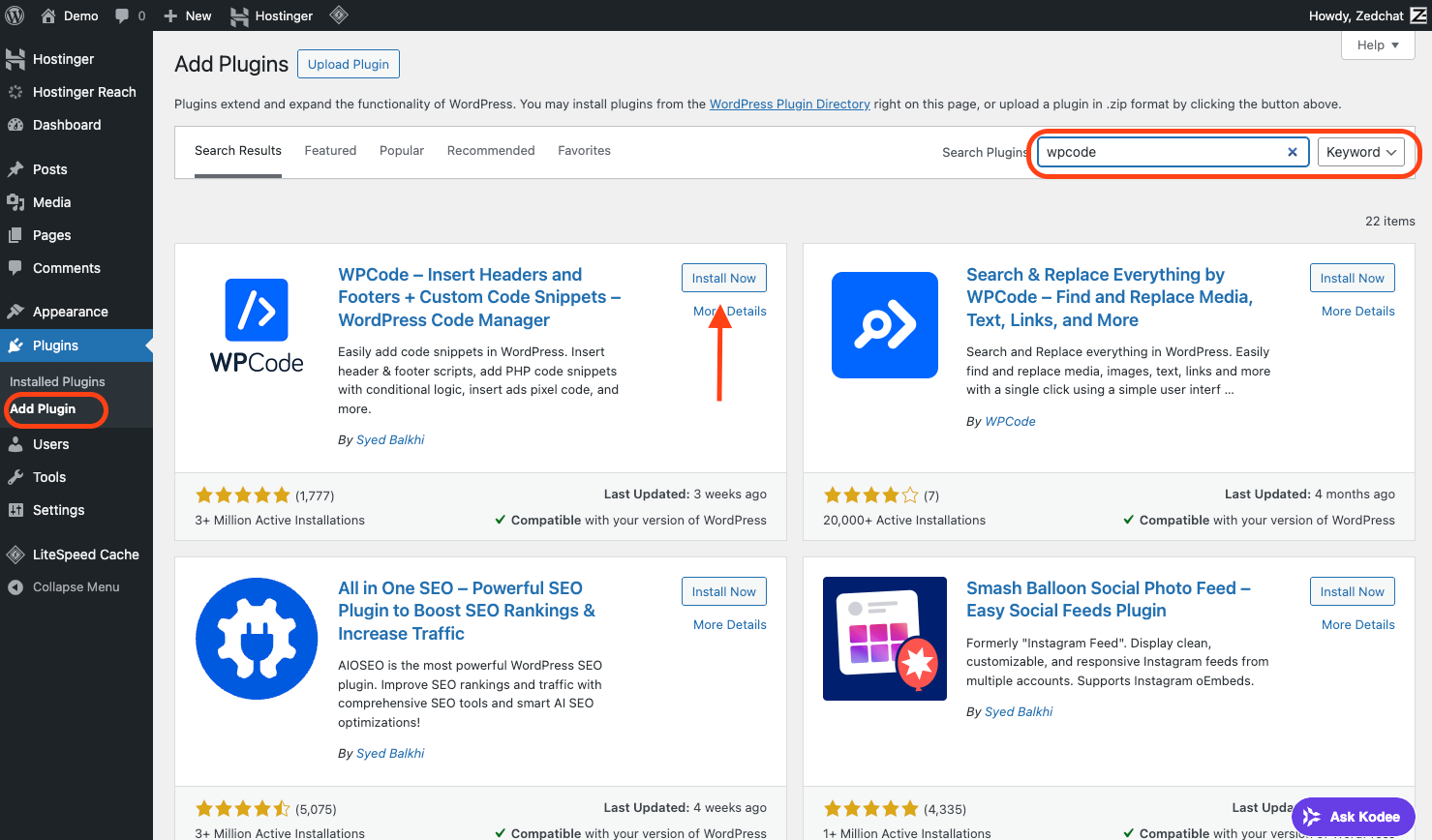
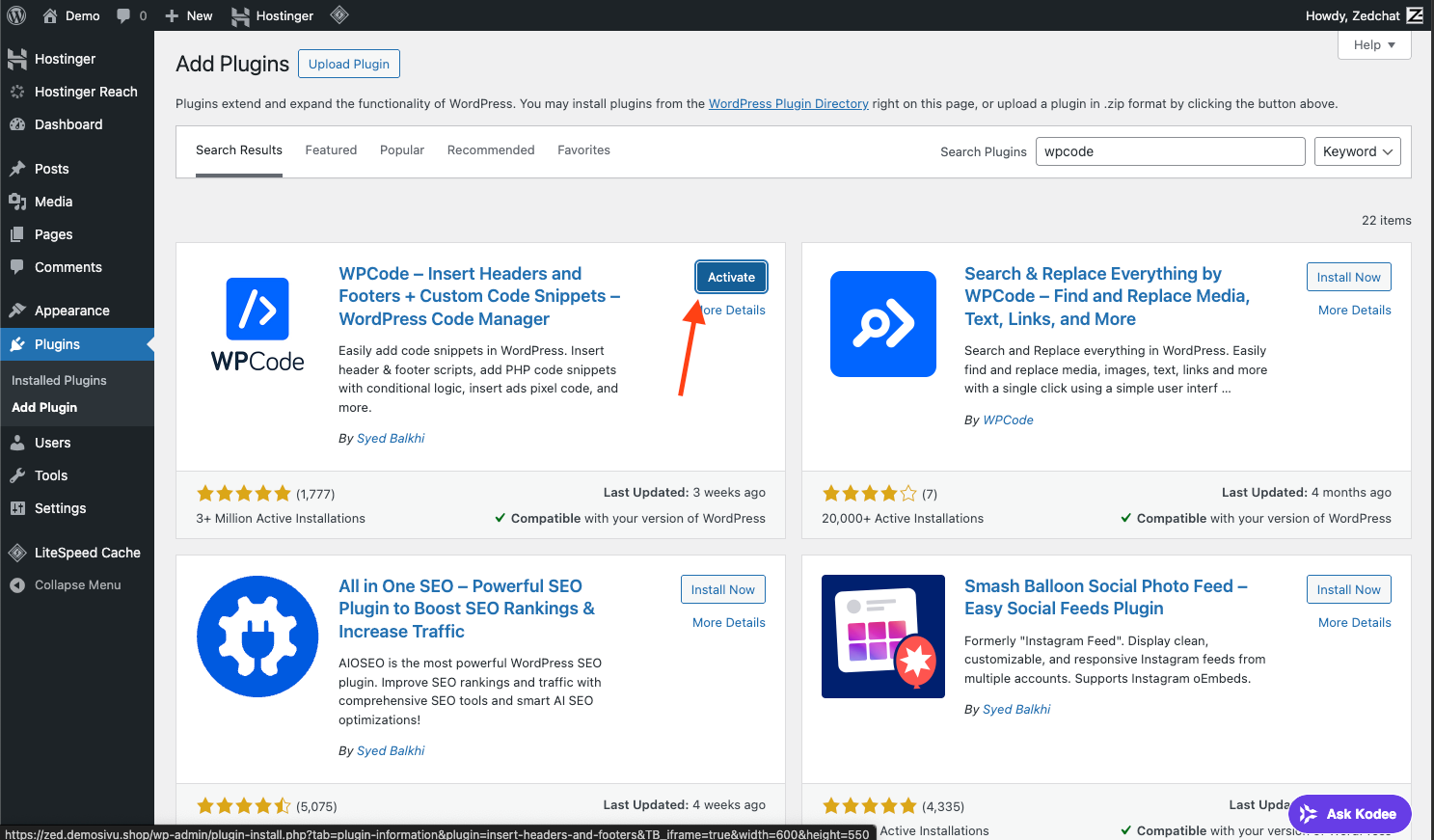
Click Plugins on the left, then Add Plugin. Search for wpcode and click Install Now on the WPCode plugin.
WPCode lets you add the ZedChat script to your website easily without editing your theme files.
Once the installation is complete, click Activate to enable the plugin.
Installation alone is not enough. The plugin must be activated before it can be used to add the ZedChat code.
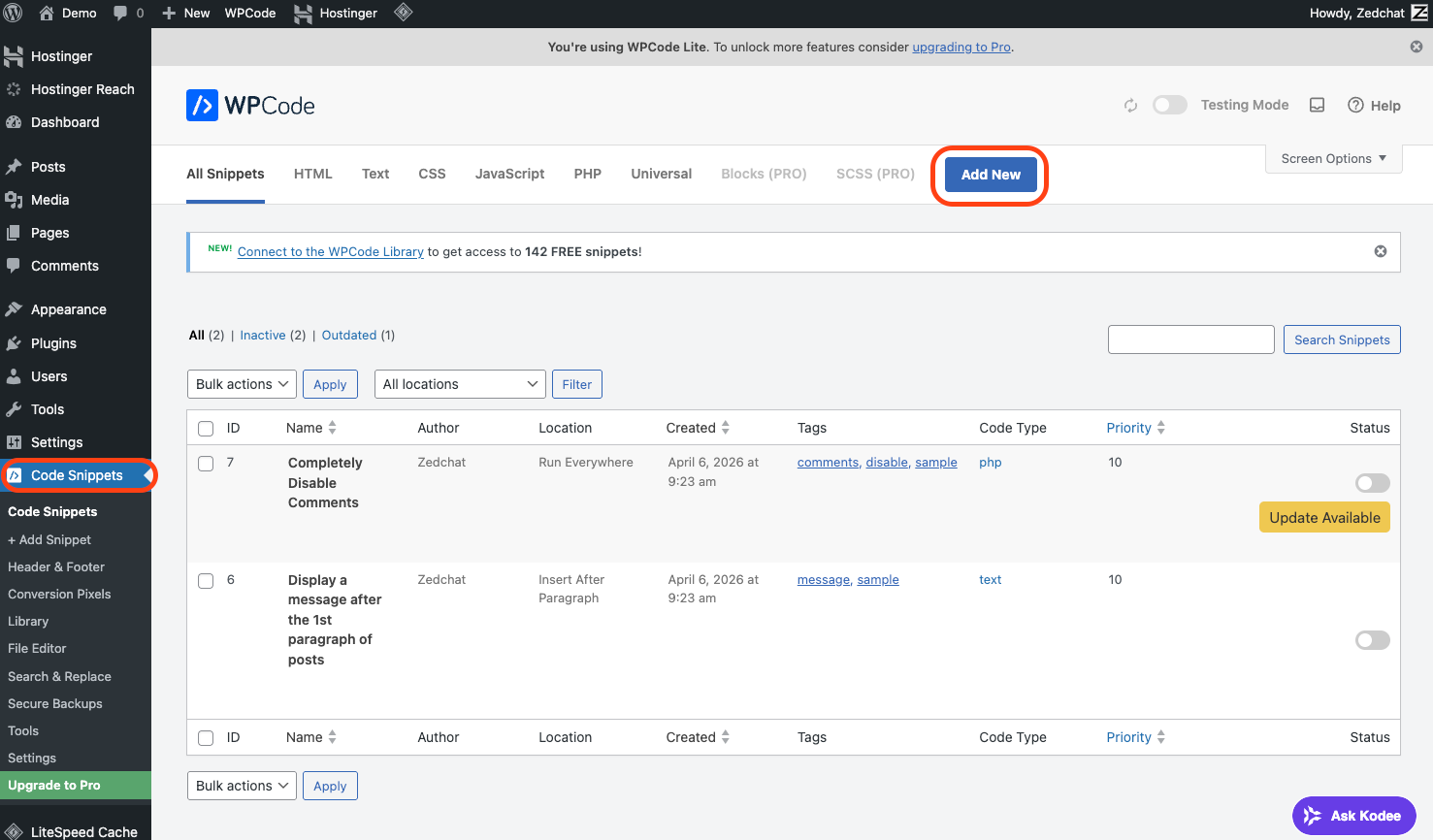
Click Code Snippets on the left, then click Add New at the top.
This takes you to the section where a new code snippet is created and where the ZedChat embed script will be added.
Select Add Your Custom Code (New Snippet) so you can add the ZedChat code to your site.
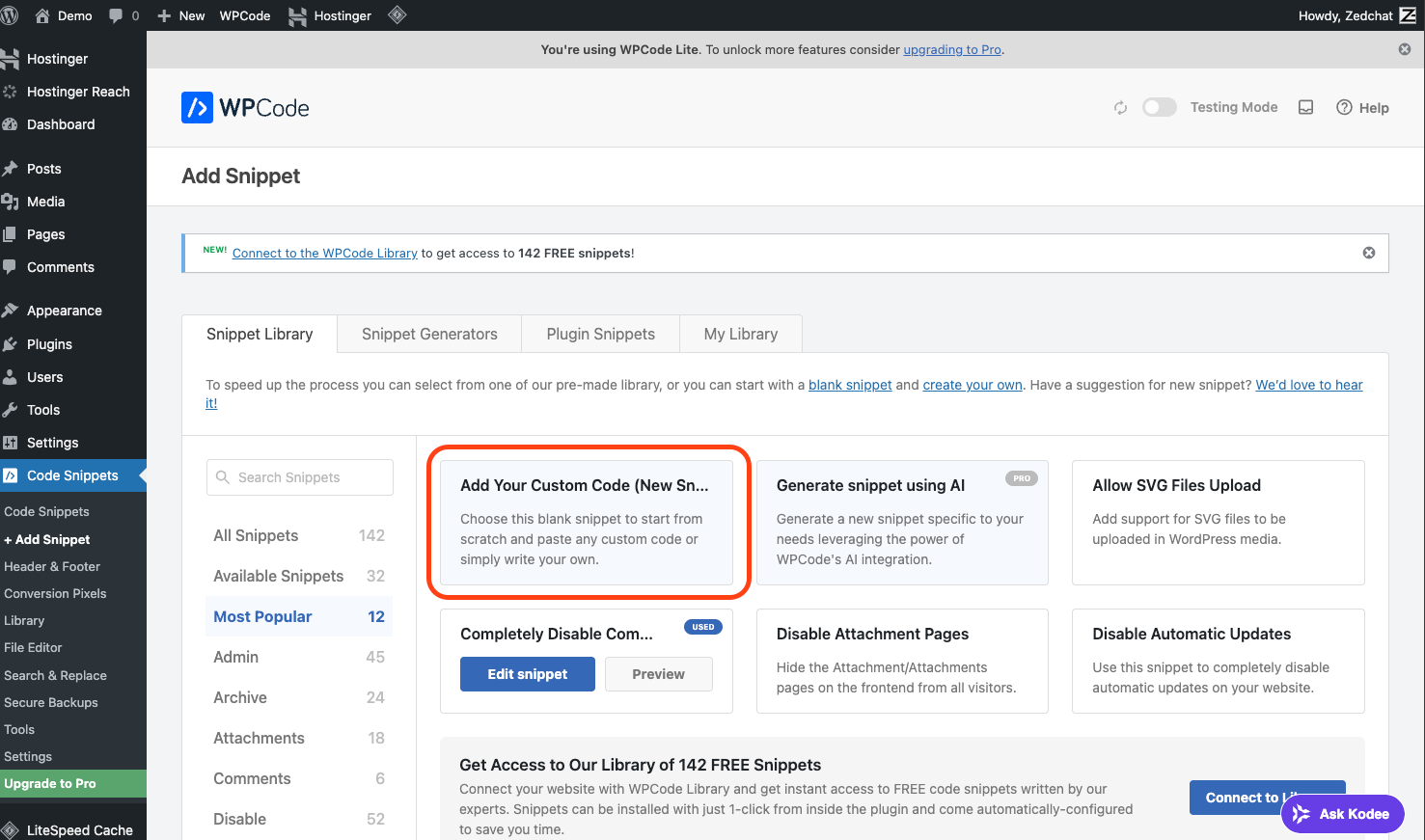
Here, a new snippet is created where the ZedChat embed script will be pasted.
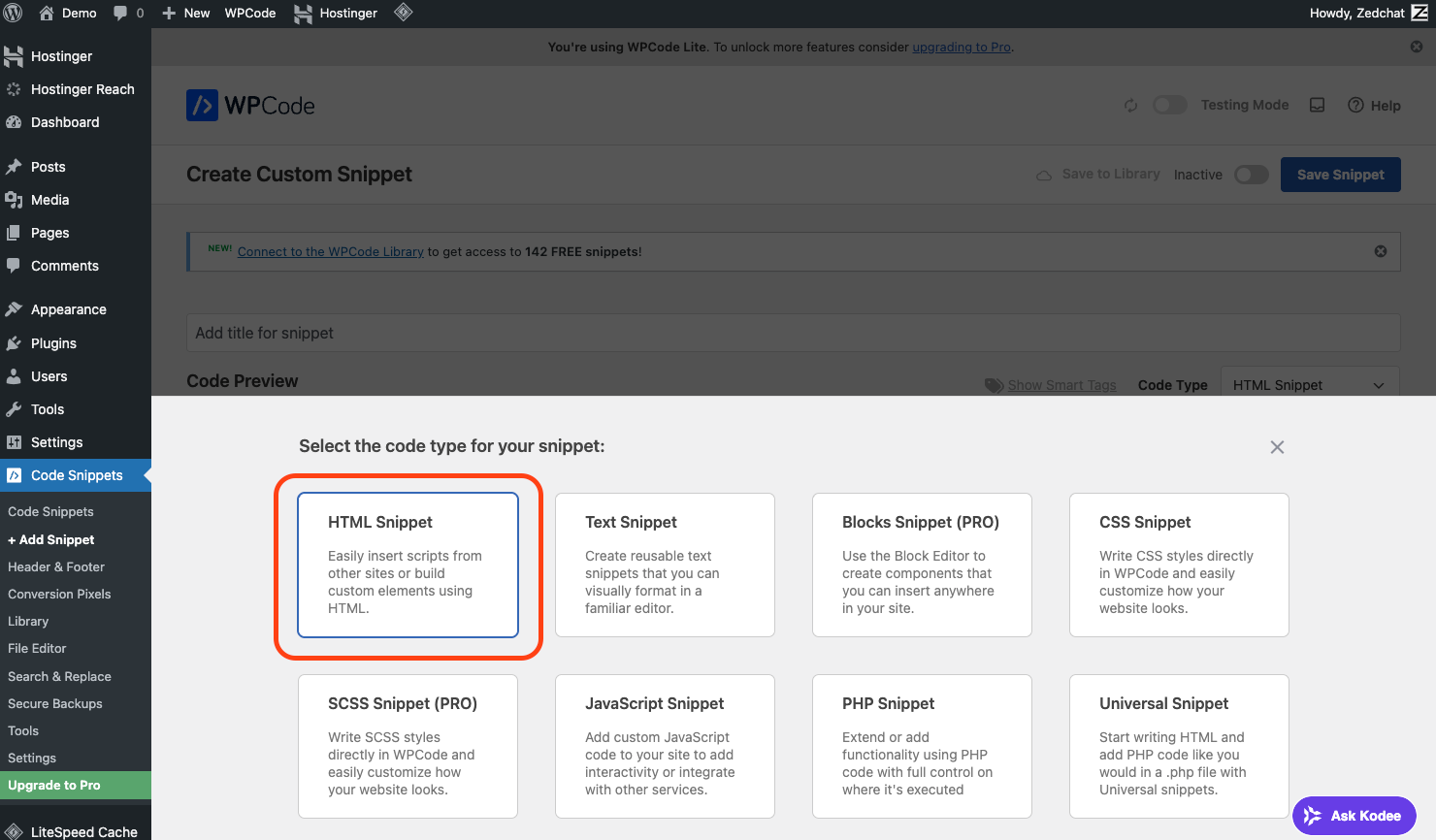
Choose HTML Snippet from the options. This must be selected because ZedChat is added to the site with a script.
The correct snippet type ensures WordPress handles the code properly and the widget can be published without issues.
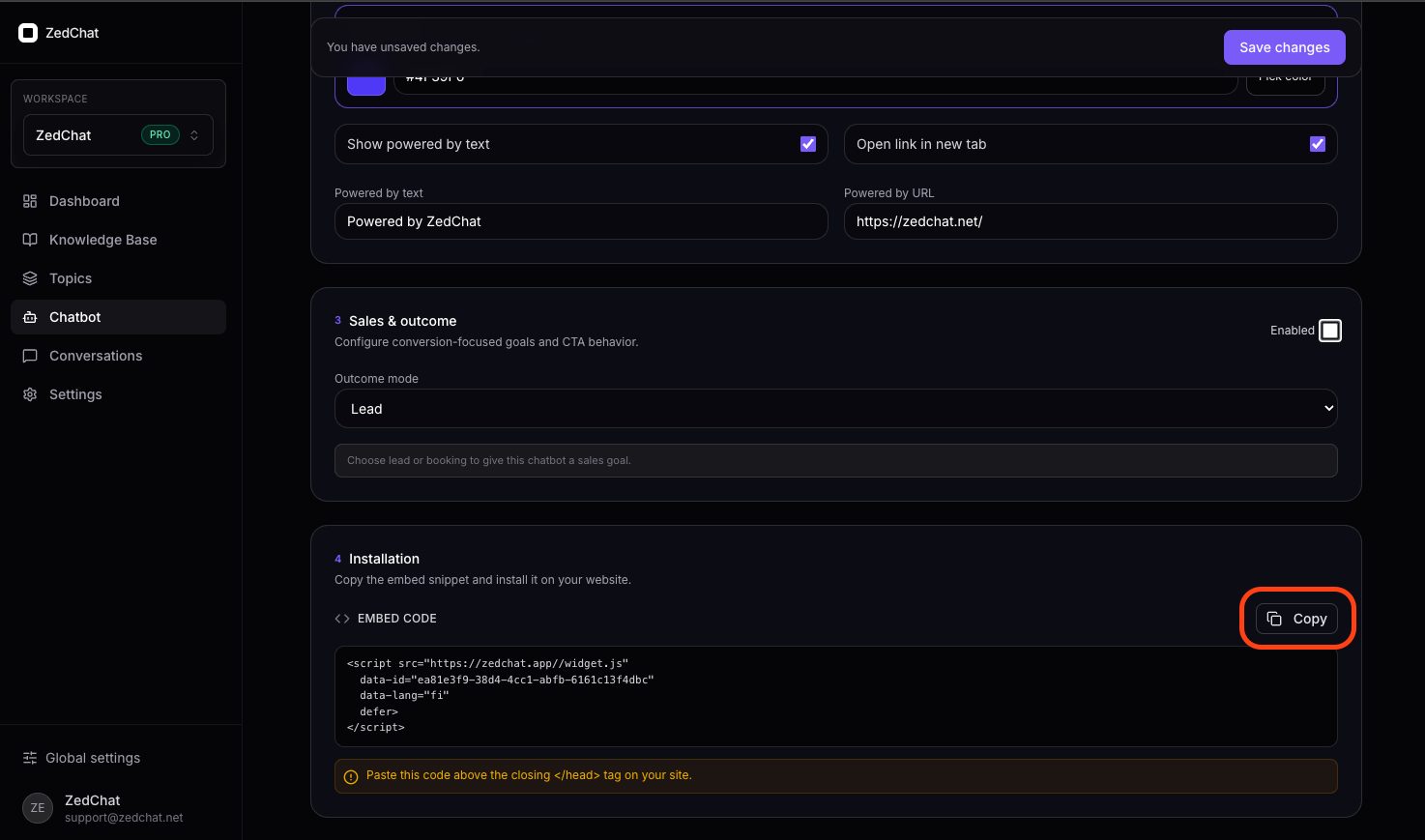
Open the ZedChat dashboard and go to Installation. Click Copy to copy the embed script.
At this stage, you copy the code that will be added to WordPress. This same code is what makes the widget appear on your website.
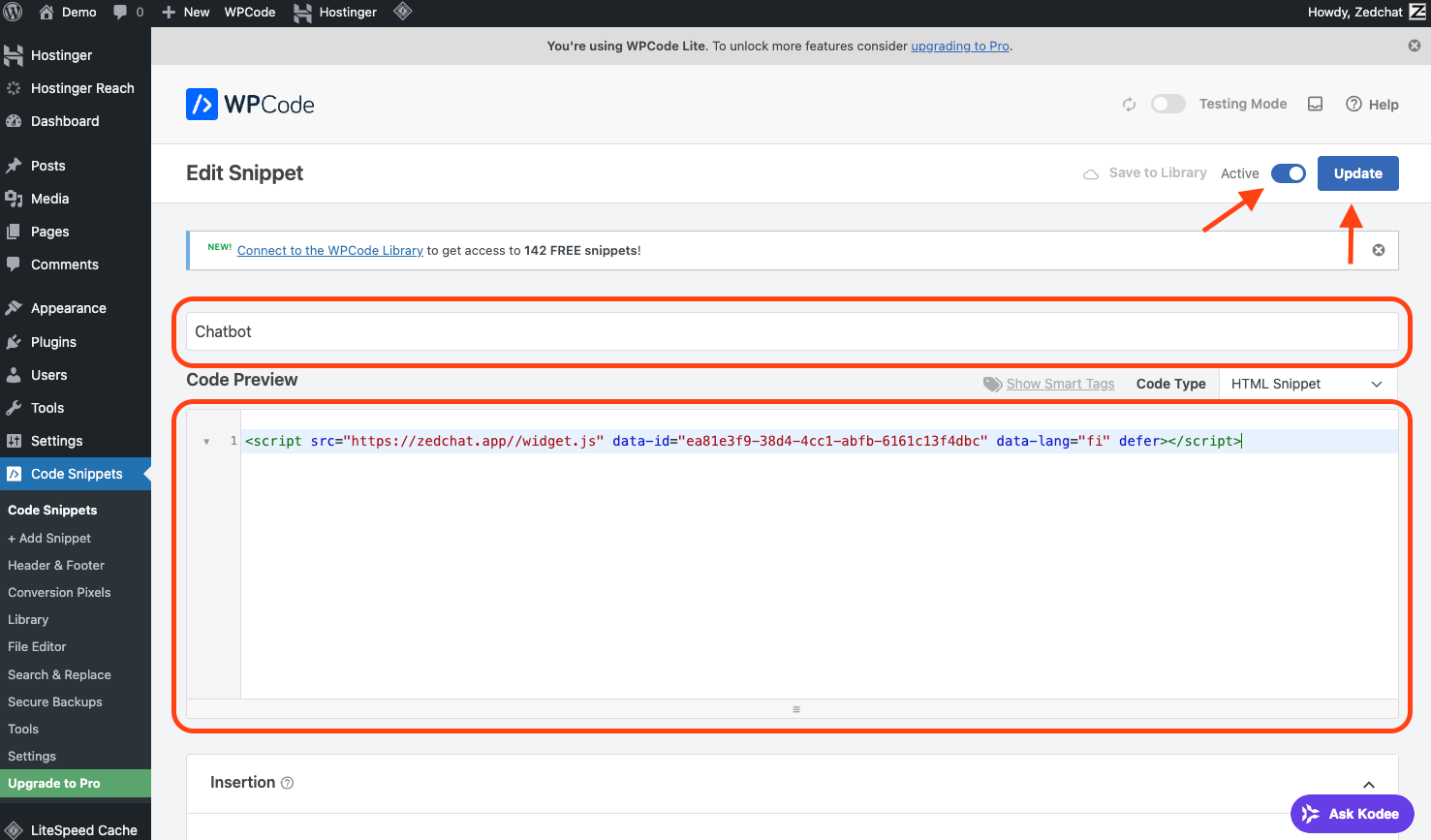
Go back to WordPress. Name it something like ZedChat and paste the copied code into the large code box. Set the snippet to Active and click Update or Save to publish ZedChat on your site.
This is the step where the ZedChat code is published in WordPress. Once the snippet is saved as active, the widget is ready to appear on the site.
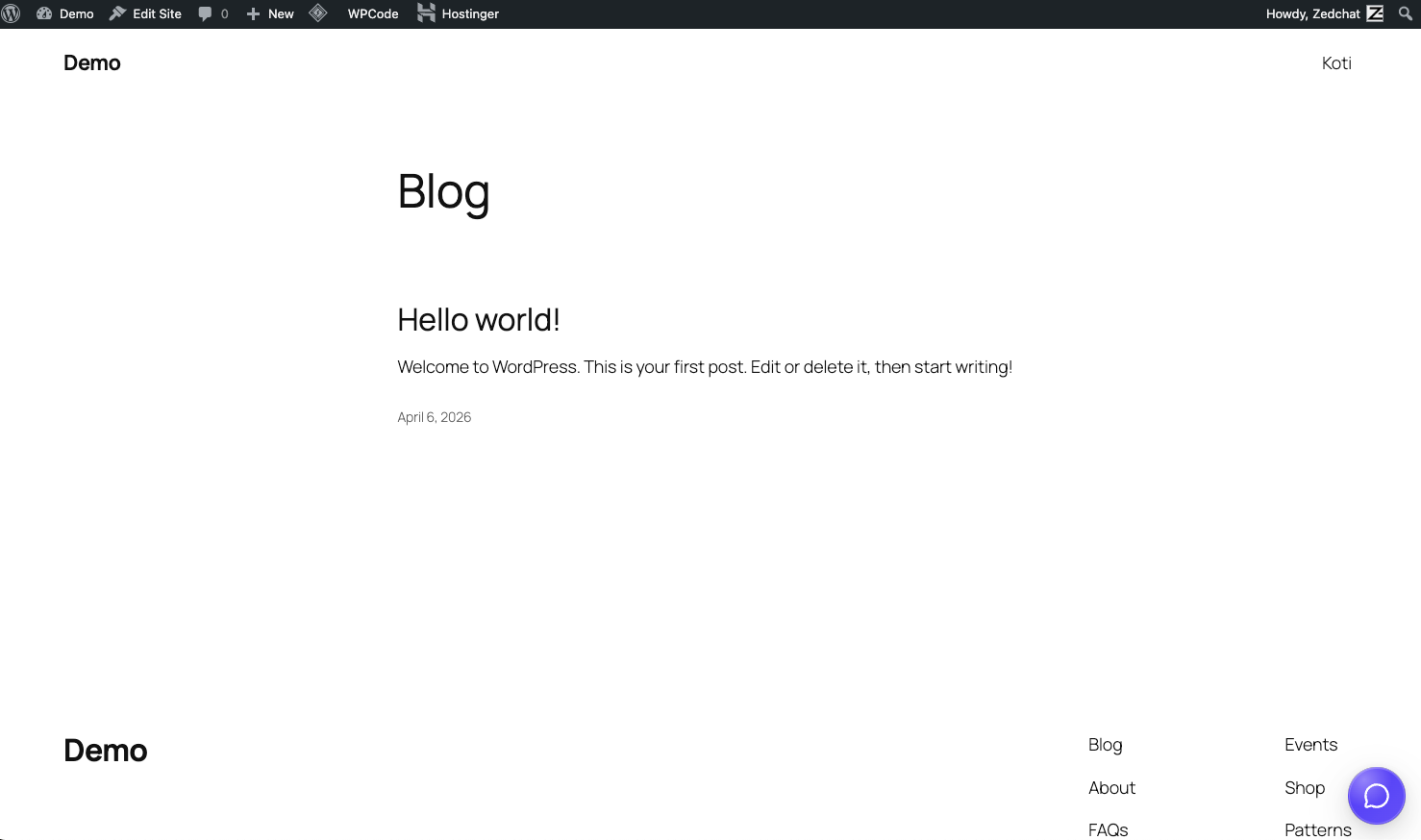
Open your homepage or another page on your website and make sure the ZedChat widget appears in the bottom-right corner.
This is the final check. If the widget appears correctly on the page, the installation is complete and ZedChat is live for your visitors.